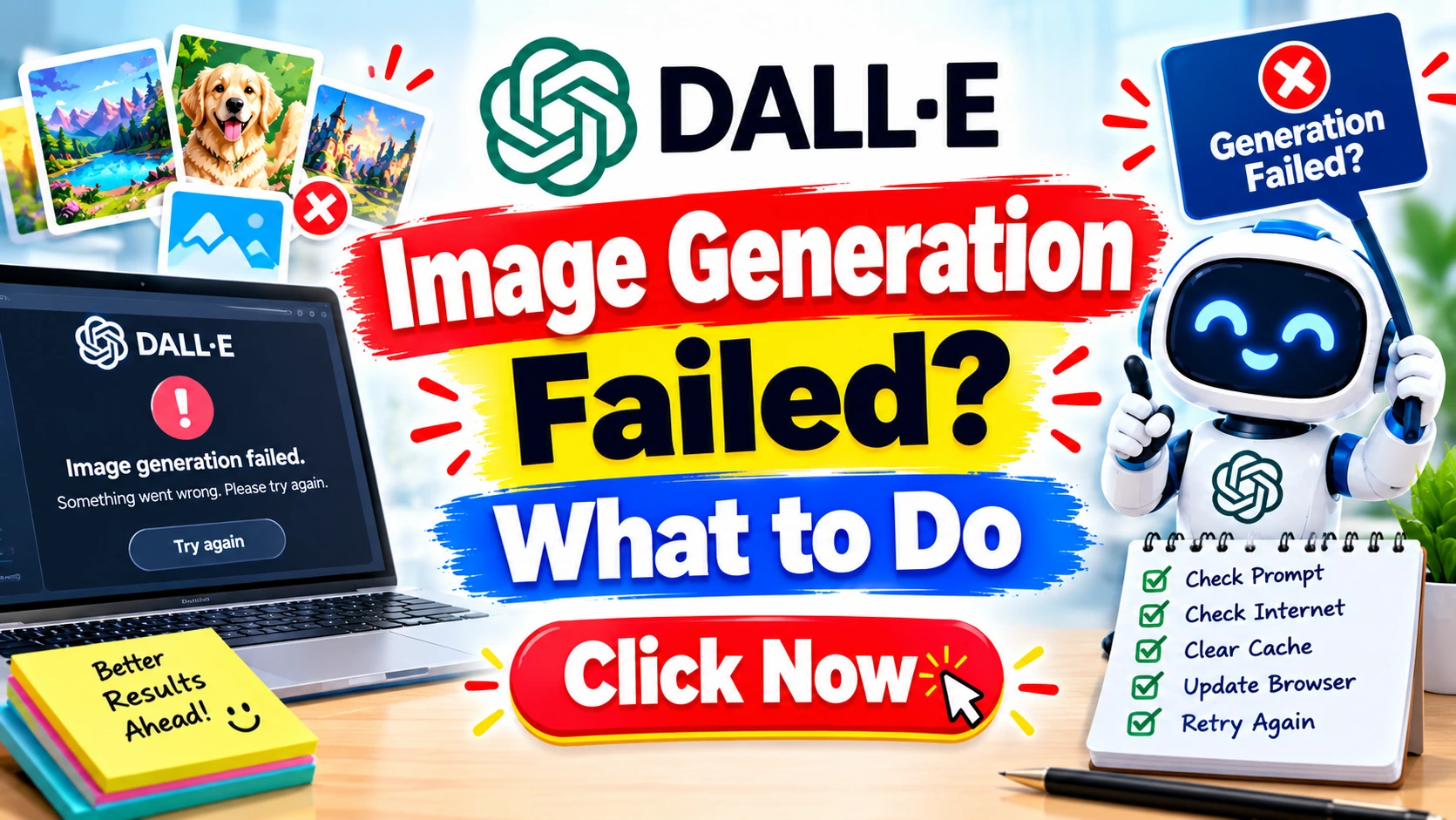
Introduction: The Era of AI and the Reality of Errors
In the rapidly evolving digital landscape, Artificial Intelligence has shifted from a sci-fi fantasy to a daily utility. Among the most revolutionary tools is DALL-E, OpenAI’s text-to-image model that turns written words into stunning visuals. Whether you are a blogger looking for a featured image, a marketer designing a campaign, or a developer building the next big app, DALL-E is a powerhouse.
However, even the most advanced technology has its bad days. You have a brilliant idea, you craft the perfect prompt, hit “Generate,” and then it happens—the dreaded red text or the “DALL-E Image Generation Failed” notification. It stops you dead in your tracks.
This comprehensive guide is designed to be your ultimate troubleshooting manual. We aren’t just going to tell you to “try again.” We are going to pull back the curtain on the technology, dissect the error codes, and provide you with expert-level solutions to get your creative flow back.
If you are tired of seeing error messages and want to master the art of AI prompt generation, you are in the right place. Let’s fix this.
Understanding the Problem: Why Does DALL-E Fail?
Before we can fix the issue, we must understand the root cause. The error message “DALL-E Image Generation Failed” is actually a generic catch-all phrase. It rarely tells you exactly what is wrong. It is essentially the AI’s way of saying, “I can’t do this right now, but I won’t tell you why.”
To fix it, we have to play detective. There are generally two main categories of failure:
- System-Side Failures: These are issues with OpenAI’s servers. The AI is overloaded, down for maintenance, or your request timed out because it took too long to process.
- User-Side Failures: These are issues on your end. It could be a prompt that violates safety guidelines (a “content policy violation”), a broken internet connection, or a billing issue.
The Anatomy of the “Generation Failed” Message
When you see the failure message, it typically happens in one of two ways:
- Instant Failure: You hit generate and the image immediately fails to load. This is usually a Safety System trigger. The AI recognized a word or concept in your prompt that is banned (e.g., violence, explicit content, hate speech).
- Delayed Failure: You see a loading bar or “Generating…”, and after a few seconds or minutes, it fails. This is usually a Server Timeout or a Network Error.
Quick Answer: The Immediate Fixes
If you are in a hurry and need a solution right now, try these three steps in this exact order:
- Refresh the Page: Sometimes the session simply times out. A hard refresh (Ctrl+F5 or Cmd+Shift+R) can re-authenticate your session.
- Check OpenAI Status: Go to
status.openai.com. If there is a red bar or “Partial Outage” for DALL-E or APIs, the problem is on their end. You need to wait. - Simplify Your Prompt: If the prompt is complex, remove adjectives and specific details. For example, change “A hyper-realistic, 8k resolution, cinematic shot of a futuristic cyberpunk city with neon lights and flying cars” to “A cyberpunk city.” If the simple prompt works, the issue was complexity or a trigger word.
Step-by-Step Fixes: The Comprehensive Troubleshooting Guide
If the quick fixes didn’t work, it is time to dig deeper. Here is the definitive troubleshooting guide.
Solution 1: Modifying Prompts to Bypass Safety Filters
DALL-E has a robust safety filter designed to prevent the generation of harmful or illegal content. However, these filters can sometimes be overly sensitive.
The Fix:
- Check for “Banned” Words: Words like “blood,” “weapon,” “fight,” or even some medical terms can trigger a block. Try using synonyms. Instead of “blood,” try “red liquid.” Instead of “weapon,” try “tool.”
- Avoid Public Figures: DALL-E is programmed not to generate images of real people, especially politicians or celebrities, due to deepfake concerns. If you prompt “A photo of [Famous Person],” it will likely fail.
- Avoid Copyrighted Characters: Prompting “Mickey Mouse” or “Pikachu” will often fail. Instead, describe the style or traits. “A cartoon mouse with red shorts” might work where the specific name fails.
Expert Tip: If you are getting a failure, try adding “style of abstract art” or “watercolor painting.” Sometimes, abstracting the image helps bypass the safety filter because it is no longer a “realistic” depiction of a banned concept.
Solution 2: Clearing Browser Cache and Cookies
A corrupted browser cache can cause a conflict with the web-based interface of ChatGPT/DALL-E.
The Fix:
- Open your browser settings.
- Find “Clear Browsing Data.”
- Select “Cookies and other site data” and “Cached images and files.”
- Clear the data and log back into OpenAI.
Expert Tip: Try using an Incognito or Private window. If DALL-E works in Incognito mode, the issue is likely a browser extension (like ad blockers or privacy shields) interfering with the script.
Solution 3: Resolving Network & VPN Conflicts
OpenAI employs strict security measures. If you are using a VPN (Virtual Private Network), you might be flagged as a bot or coming from a restricted region.
The Fix:
- Disable your VPN: Turn off your VPN and try again. If it works, your VPN IP was flagged.
- Switch Servers: If you must use a VPN, switch to a different country server (e.g., from USA to UK).
- Check Firewalls: Ensure your corporate or personal firewall isn’t blocking WebSocket connections, which DALL-E uses for real-time generation.
Solution 4: Checking Account Credits and Subscription Status
DALL-E isn’t free forever. If you are using the API, you pay per image. If you are on a free tier of ChatGPT, you have limited generations.
The Fix:
- For API Users: Log into your OpenAI Platform dashboard. Check “Usage.” If you have hit the hard limit or your credit card declined, the API will return a failure.
- For ChatGPT Plus Users: Ensure your subscription hasn’t expired. Check the “My Plan” section. If you have hit the specific DALL-E generation cap (often 50 images every 3 hours for Plus users), you must wait for the reset.
Solution 5: The API Key Authentication Fix
This is specific to developers using the API. If your key is invalid, revoked, or lacks permissions, generation will fail.
The Fix:
- Regenerate your API key in the OpenAI dashboard.
- Ensure your code (Python, Node.js, etc.) is calling the correct endpoint (
/v1/images/generations). - Check if you have set up billing correctly; free API trials expire.
Expert Tip: Ensure your environment variables are set correctly. A common mistake is having a “Test” key in a “Production” environment, or vice versa.
Deep Dive: Common Causes of DALL-E Failures
To truly master the tool, you need to understand the “behind-the-scenes” mechanics.
The “Safety System” Intervention (SpamBrain for AI?)
Just as Google uses SpamBrain to filter search results, OpenAI uses a sophisticated classifier to filter prompts. It isn’t just looking for bad words; it is looking for intent.
- The “Medical” Trap: Prompting for “surgery” or “wound” for a medical blog can trigger the filter. It might think you are generating gore.
- The “Copyright” Trap: The system recognizes logos and famous art styles (like “in the style of Disney”).
Why this matters: If you are a legitimate content creator trying to illustrate a news article about a conflict, you might hit the filter. You need to learn how to “sanitize” your prompt.
Understanding “Rate Limiting” and Throttling
If you send too many requests in a short period, OpenAI’s servers will throttle you. This is to prevent abuse and ensure fair usage.
- Symptom: The first few images generate fine, then suddenly everything fails.
- The Fix: Wait 60 seconds. Do not refresh or spam the button. Give the server time to reset your queue.
Prevention Tips: How to Avoid Future Errors
- Keep Prompts Descriptive but Safe: Focus on lighting, composition, and style rather than specific, potentially triggering nouns.
- Use Professional Tools: For high-volume work, use the API rather than the web interface, as API limits are often higher and more predictable.
- Diversify Your Tech Stack: If DALL-E is down, have a backup. Tools like Midjourney, Stable Diffusion, or Adobe Firefly can serve as excellent alternatives.
Real-Life Examples: Case Studies in AI Frustration
Case Study 1: The “Gun” Error
A user tried to generate an image for a video game asset: “A futuristic soldier holding a gun.” The generation failed.
- The Fix: The user changed the prompt to “A futuristic soldier holding a metallic prop.” The image generated successfully.
Case Study 2: The “Server Busy” Monday
A marketing team in New York tried to generate images for a Monday morning launch. Between 9:00 AM and 11:00 AM EST, generation failed repeatedly due to server load.
- The Fix: They shifted their generation schedule to off-peak hours (early morning or late night) or used a different model like DALL-E 2 (which is sometimes less busy than DALL-E 3) for less critical tasks.
Expert Insight: AI models are not magic; they are computers. Computers get tired (overheat) and need maintenance. If you are on a tight deadline, always generate your assets 24 hours in advance.
Why This Matters: The Importance of AI Uptime
In the modern economy, time is money. If you are stuck troubleshooting “DALL-E Image Generation Failed,” you are not creating content, not closing sales, and not building your business. Understanding these errors empowers you to act fast and minimize downtime.
Common Mistakes to Avoid
- Spamming the Generate Button: This often makes the problem worse by triggering rate limits.
- Ignoring the Terms of Service: Trying to bypass safety filters using “jailbreak” prompts can get your account banned permanently.
- Assuming the Issue is You: Sometimes, it really is OpenAI. Check the status page first.
Advantages & Disadvantages
Advantages:
- Creativity: DALL-E turns imagination into reality.
- Efficiency: Saves hours of manual design work.
- Accessibility: No need to be a trained artist.
Disadvantages:
- Dependency: You rely on OpenAI’s servers being up.
- Strict Policies: The safety filters can be overly aggressive for niche use cases.
- Cost: High-volume generation can be expensive.
Safety Warnings: Navigating the Ethical Line 
Content Policy: Do not attempt to generate images that are illegal, sexually explicit, or promote violence. OpenAI monitors this heavily.
Data Privacy: Do not input sensitive personal data (like passwords or personal IDs) into your prompts. Prompts are stored on their servers.
Disclaimer: This guide is for educational purposes. Attempting to bypass safety filters may result in account termination by OpenAI.
Checklist / Summary
- □ Did you check the OpenAI Status Page?
- □ Is your prompt free of “trigger” words (violence, celebrities, copyright)?
- □ Did you try Incognito mode?
- □ Is your VPN off?
- □ Do you have active credits/subscription?
- □ Did you wait 60 seconds for rate limiting to reset?
Trusted References & Sources
- OpenAI Documentation: The official guide to Image Generation APIs.
- OpenAI Safety Standards: Understanding content policies.
- StatusGator: Third-party monitoring of cloud services.
Conclusion
The “DALL-E Image Generation Failed” message is a speed bump, not a roadblock. By understanding the “why” and applying the “how,” you can quickly resolve the issue and get back to creating amazing AI art. Remember to keep your prompts clean, your connection stable, and your expectations realistic. AI is a powerful partner, but it requires a little patience and troubleshooting know-how.
Premium Tips from Niaz Khan Expert
As a seasoned expert in SEO and digital content creation, here is my exclusive advice for dealing with AI errors:
- The “Two-Model” Strategy: Always use two tabs. Keep one on DALL-E 3 for high-end art and one on a cheaper model (like DALL-E 2) for quick drafts. If one fails, switch to the other.
- Image Generation Batch Processing: Don’t write one prompt and generate one image. Write 5 prompts, then generate them in a batch. This saves time if the server is flaky.
- The “Style” Hack: If you are getting blocked, append “in the style of a professional vector illustration” or “3D render.” This changes the “mode” of the AI and often bypasses filters that would block a “photorealistic” request.
Disclaimer
This article provides solutions based on current OpenAI guidelines. AI technology is rapidly evolving, and error messages may change. This site is not affiliated with OpenAI. Always refer to official OpenAI documentation for the most up-to-date technical specifications.