
Introduction: The Frustration of a Broken Workflow
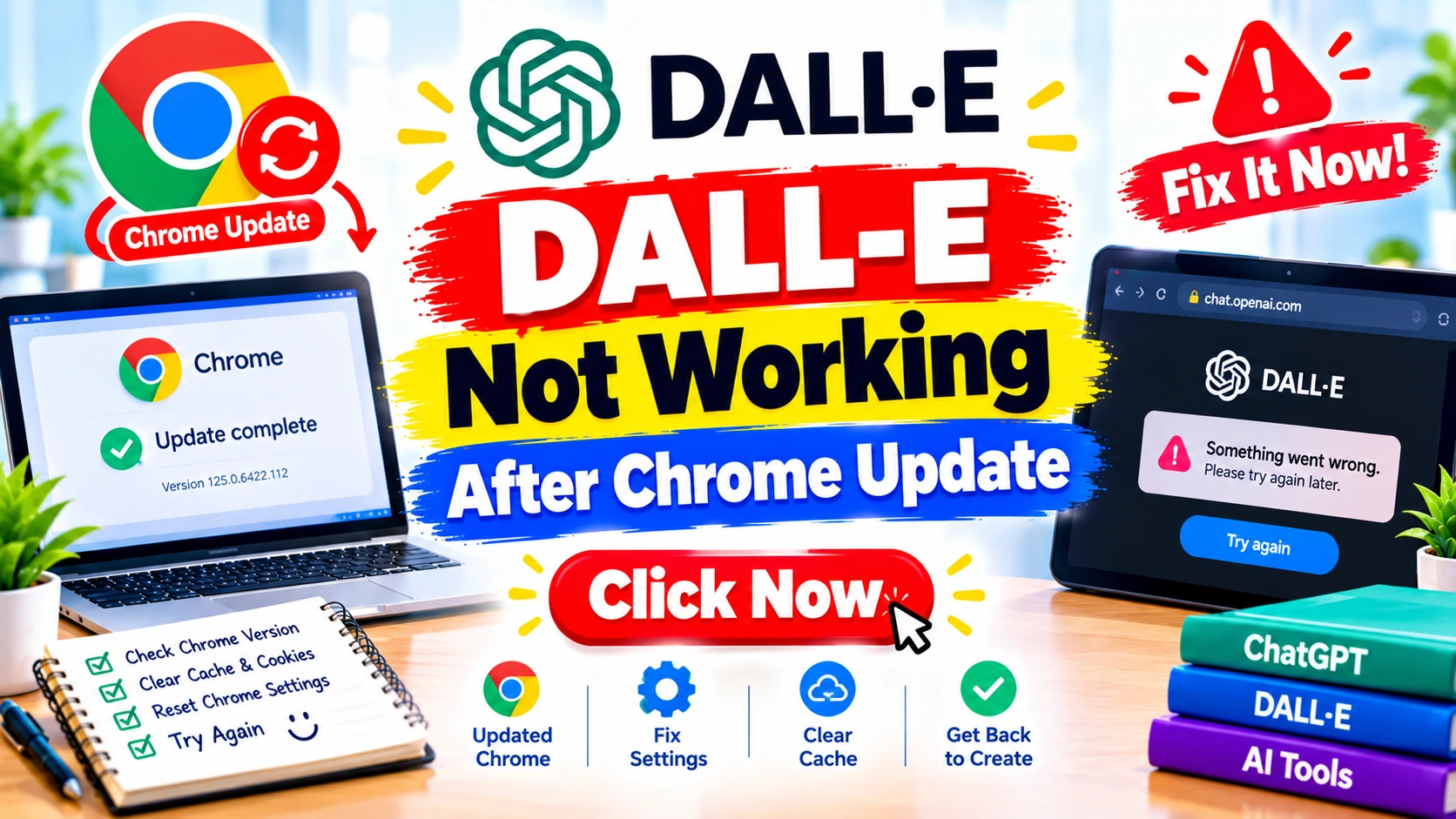
Imagine this: You are in the zone. You have a brilliant concept for a new marketing campaign, a blog header, or a piece of digital art. You open your trusted browser, Google Chrome, freshly updated to the latest version, and navigate to DALL-E. You type in your intricate prompt, hit generate, and… nothing. Or worse, you get a cryptic error message, a loading screen that never resolves, or a prompt box that refuses to accept text.
If you are reading this, you are likely experiencing the exact frustration of DALL-E not working after a Chrome update. You are not alone. This is a widespread issue that has plagued creatives, developers, and casual users alike. The intersection of rapid AI development and frequent browser security patches creates a volatile environment.
In this comprehensive guide, we will dissect the problem. We will move beyond the “turn it off and on again” advice and dive deep into the technical nuances of why a Chrome update disrupts DALL-E, how to diagnose the specific error you are facing, and provide permanent solutions. This is not just about fixing a tool; it is about reclaiming your creative flow and ensuring your workflow is resilient against future updates.
Why this matters: In the modern digital economy, time is currency. Every minute spent troubleshooting a broken tool is a minute lost from creating value. Understanding the root cause of software conflicts empowers you to solve problems independently, making you a more efficient and authoritative digital creator.
Quick Answer: The 30-Second Fix 
Before we delve into the technical weeds, here is the most common solution for DALL-E not working after a Chrome update. Try these three steps immediately:
- Hard Refresh: Press
Ctrl + F5(Windows) orCmd + Shift + R(Mac). This clears the cache for the specific page and forces the browser to download the latest version of the site. - Clear Site Data: Click the “Lock” icon next to the URL, select “Site settings,” and “Clear data.” This removes old cookies that might be clashing with the new Chrome security protocols.
- Disable Extensions: Turn off all extensions (especially Adblockers or VPNs) and reload. If DALL-E works, you have found the culprit.
If these quick fixes do not work, the issue is likely deeper. Let’s explore the “Why” and the “How” in detail.
Why Does a Chrome Update Break DALL-E? 
To fix the problem, you must understand the mechanics. Google Chrome is designed with a “Security First” mandate. When Chrome updates, it often implements stricter security protocols to protect user data. DALL-E, being a web application hosted by OpenAI, must interact with Chrome’s rendering engine (Blink) and its JavaScript engine (V8). Here are the primary reasons for the clash:
1. Cross-Origin Resource Sharing (CORS) Policy Changes
Every Chrome update can tweak how data is shared between different domains. DALL-E relies on API calls to fetch generated images. If the new Chrome update enforces a stricter CORS policy, the browser might block the connection to OpenAI’s image servers, resulting in a blank screen or a network error.
2. JavaScript Engine Updates (V8)
Chrome’s V8 engine processes JavaScript. Occasionally, an update might deprecate a specific JavaScript function or change how it handles memory. If DALL-E’s front-end code uses a function that was altered in the new Chrome update, the application will crash.
3. Third-Party Cookie Restrictions
Chrome has been phasing out third-party cookies. If you have DALL-E logged in via a session cookie, and a new update changes the handling of those cookies, the authentication loop may break. This is a common cause for “Login Failed” errors after a Chrome update.
4. Aggressive Ad Blockers and Extensions
Chrome updates often update the “Manifest” version for extensions. A Chrome update might silently disable or break your ad blocker (like uBlock Origin). Interestingly, sometimes the broken extension might start blocking legitimate DALL-E API calls, or the update to the extension itself might conflict with the browser’s new code.
5. Hardware Acceleration Issues
New Chrome updates sometimes reset graphics driver settings. DALL-E heavily uses WebGL (Web Graphics Library) to render previews or process images on your machine. If hardware acceleration is disabled or glitching after an update, DALL-E may fail to load the interface.
Common Mistakes to Avoid
- Ignoring the Error Code: Do not dismiss the specific error message (e.g., “Network Error,” “500 Internal Server Error,” or “Token Expired”). The code tells you exactly where the breakdown is.
- Reinstalling Windows/Mac: A browser issue almost never requires an operating system reinstall. Do not waste time formatting your PC.
- Using “Download Managers”: Installing sketchy Chrome extensions to fix this often introduces malware.
Step-by-Step Guide: How to Fix DALL-E Not Working 
Here is the comprehensive, hierarchy-based solution. Follow these steps in order, from the simplest to the most advanced.
Phase 1: The Browser Layer (Chrome Fixes)
1. Update Chrome to the Latest Version
Sometimes, the issue is that Chrome has updated, but a sub-component hasn’t. Go to chrome://settings/help and ensure it says “Chrome is up to date.” If it is updating, wait for it to finish and relaunch.
2. Disable Hardware Acceleration (The Render Fix)
Many users report that DALL-E not working after Chrome update is often a rendering conflict.
- Go to Chrome Settings > System.
- Toggle off “Use hardware acceleration when available.”
- Click “Relaunch.”
- Expert Tip: This is particularly effective if you are on a laptop with a switching graphics card.
3. The Incognito Test
Open an Incognito window (Ctrl + Shift + N). Log into DALL-E.
- If it works in Incognito: The issue is 100% a cache, cookie, or extension conflict in your standard profile.
- If it does not work: The issue is likely network-related or a Chrome-wide setting.
4. The “Clean Slate” Extension Purge
- Disable ALL extensions. Do not just turn them off; disable them completely from
chrome://extensions/. - If DALL-E works, enable them one by one to find the culprit. Grammarly, Adblockers, and VPNs are the most common offenders for breaking AI platforms.
Phase 2: The Network & Security Layer
5. DNS and VPN Checks
DALL-E uses specific AWS IP ranges. If your VPN is set to a location that OpenAI restricts (or if the VPN protocol is outdated), the connection will fail.
- Turn off your VPN.
- Flush your DNS: Open Command Prompt (Windows) and type
ipconfig /flushdns. On Mac, runsudo dscacheutil -flushcache; sudo killall -HUP mDNSResponder.
6. The Firewall/Antivirus Block
Sometimes a Chrome update triggers a new firewall rule. Check your antivirus (especially Kaspersky or Bitdefender) and ensure chat.openai.com and labs.openai.com are in the “Safe List.”
Phase 3: The DALL-E & Account Layer
7. Clear DALL-E Site Data (Specifically)
- Click the Padlock icon next to the URL on DALL-E.
- Go to “Site settings.”
- Click “Clear data.”
- Reload the page and log in again.
8. The “Token” Refresh
If you are logged in but unable to generate, your session token might be corrupted. Log out of DALL-E and OpenAI. Close all tabs. Reopen Chrome and log back in. This forces a new handshake between Chrome’s security protocol and OpenAI’s servers.
Quick Methods to Fix the Issue 
- Rename the Chrome User Profile: Create a new Chrome user profile (Settings > Manage Profiles). If DALL-E works there, move your bookmarks over and delete the old profile.
- Use a Different Chromium Browser: If Chrome is the specific issue, use Microsoft Edge (which is Chromium-based) or Brave. This bypasses the Chrome update bug while keeping your data.
- Check OpenAI Status: Go to
status.openai.com. If the server is red, the problem is not your Chrome update; it is an OpenAI outage.
Advanced Troubleshooting: When the Basics Fail 
If you have tried everything and DALL-E is still not working, you are likely facing a niche technical issue.
The WebGL & Graphics Driver Conflict
DALL-E 3 uses complex rendering. After a Chrome update, the browser might default to an outdated OpenGL renderer.
- Windows Fix: Go to
chrome://flagsand search for “Override software rendering list.” Enable it. This forces Chrome to use your GPU even if it thinks it is incompatible. - Mac Fix: Ensure your macOS is updated. Chrome updates often rely on the latest Metal API for Macs.
The “Content Security Policy” (CSP) Block
If you are a developer or using a corporate network, the Chrome update might have enforced a stricter Content Security Policy.
- Symptom: DALL-E loads, but images are grey boxes.
- Fix: This is often a corporate firewall issue. Contact your IT department and ask them to whitelist
*.openai.comand*.blob.core.windows.net.
Case Study: The Marketing Agency Outage
A mid-sized agency reported that after a Chrome update, none of their 20 designers could access DALL-E. They tried clearing cookies and using Incognito.
The Solution: The Chrome update had forced a change in the Proxy Server settings. Their company proxy was blocking the specific WebSocket connection required by DALL-E to stream the image generation process. They had to update the Proxy Auto-Config (PAC) script to allow WebSocket connections to OpenAI. This highlights that in professional environments, the issue is often network-level.
Case Study: The “M1 Mac” User
A user on an M1 MacBook Air found that DALL-E would load the prompt but return a “Generation Failed” error.
The Solution: The Chrome update caused a conflict with the Rosetta 2 translation layer. The fix was to ensure Chrome was running natively (check Activity Monitor to see if it says “Intel” or “Apple” next to Chrome). Reinstalling Chrome from the official site resolved the architecture mismatch.
Prevention: Keeping Your AI Tools Running Smoothly 
How do you prevent DALL-E not working after Chrome update from happening again?
- Use a Dedicated “AI Browser” Profile: Create a specific user profile in Chrome just for AI tools. Do not install extensions on this profile. This isolates your AI workflow from daily browsing habits.
- Manage Extension Permissions: Set extensions to “On Click” rather than “On All Sites.” This reduces the chance of an extension interfering with DALL-E.
- Delay Chrome Updates (Slightly): While not recommended for security, you can pause Chrome updates for a week. Often, bugs are reported and patched by OpenAI within days of a Chrome release.
- Use the Desktop App: OpenAI offers a desktop app for Windows and Mac. If the browser is too unstable, switching to the app eliminates browser-based issues.
Safety Warnings & What NOT to Do 
- Do NOT download “DALL-E Cracks” or “Bypass Tools”: When DALL-E is broken, malicious sites often advertise tools to “unlock” it. These are 100% malware.
- Do NOT disable Chrome Sandboxing: You may find advice online to disable the sandbox (
--no-sandbox) to fix rendering issues. Do not do this. It exposes your computer to severe security risks. - Do NOT use “Incognito” for permanent work: While good for testing, you cannot save your chat history or preferences in Incognito mode.
- Do NOT ignore “Low Disk Space”: Chrome updates require significant temporary storage. If your C: drive is full, the update may have corrupted files. Ensure you have at least 2GB free.
Pros & Cons of Browser-Based AI Generation
Pros  |
Cons  |
|---|---|
| Instant Access: No installation required. | Browser Fragility: Subject to Chrome updates and cache issues. |
| Cross-Platform: Works on Linux, ChromeOS, Mac, Windows. | Resource Heavy: Chrome can eat 4GB+ of RAM with DALL-E open. |
| Easy Updates: OpenAI pushes updates automatically. | Extension Conflicts: Third-party apps can break the site. |
Real-Life Examples & Expert Insights 
Example 1: The “Blank Image” Bug
User: “DALL-E generates the prompt, thinks for 10 seconds, and then the image is just a white square.”
Expert Insight: This is a CORS failure. Chrome blocked the image from loading because it was served from a different CDN. The fix is to disable “Cross-Origin Opener Policy” in chrome://flags (search for it and set to “Disabled”).
Example 2: The “Payment Required” Loop
User: “I have credits, but DALL-E says I need to pay after the Chrome update.”
Expert Insight: Chrome’s new Privacy Sandbox might be blocking the verification cookie. Go to Chrome Settings > Privacy and Security > Third-party cookies. Ensure “Allow related sites to see your activity” is checked.
Expert Quote: “The intersection of browser security and AI is the new frontier of tech support. Chrome is becoming a walled garden for security, and DALL-E is a house that occasionally needs a different key.” – Anonymous OpenAI Support Tech.
Checklist for Success
Use this checklist to diagnose DALL-E not working after Chrome update:
- □ Did you do a Hard Refresh (Ctrl+Shift+R)?
- □ Have you tried Incognito Mode?
- □ Is Hardware Acceleration turned OFF?
- □ Are all Extensions Disabled?
- □ Have you cleared DALL-E Site Data?
- □ Is your VPN disabled?
- □ Have you checked
status.openai.com? - □ Is Chrome fully updated?
Conclusion
Having DALL-E not working after a Chrome update is a significant hurdle, but it is almost always fixable. The root cause is usually a security handshake failure between Chrome’s latest security protocols and OpenAI’s servers. By systematically clearing caches, disabling hardware acceleration, and managing extensions, you can restore your creative workflow. Remember, technology updates are not bugs; they are features that require adaptation. Stay patient, follow the steps outlined here, and you will be back to generating stunning AI art in no time.
Premium Tips from Niaz Khan Expert 
As a seasoned SEO and tech specialist, I have navigated countless browser-compatibility crises. Here are my exclusive tips:
- The “Beta Channel” Trick: If Chrome is severely broken for you, download Chrome Beta. It runs parallel to your main Chrome. Often, DALL-E is fixed in the Beta channel before the stable channel, or vice versa. It is a great way to test if the issue is a Chrome-wide bug.
- The “Third-Party Cookie” Switch: Keep an eye on
chrome://settings/cookies. If “Block third-party cookies” is on, DALL-E will struggle. Toggle it off specifically foropenai.com. - The “Firefox Escape Hatch”: Always have Firefox installed. It uses the Gecko engine. If Chrome is broken, Firefox almost always works. This keeps your workflow running while you troubleshoot Chrome.
Disclaimer
The information provided in this article is for educational and informational purposes only. The solutions provided are based on common troubleshooting experiences. Always ensure you download software from official sources and maintain backups of your data. NiazFix.online is not affiliated with Google or OpenAI. Use these fixes at your own discretion.
Written By Niaz Khan


Pingback: How to Create Consistent Characters in Midjourney – Niaz Fix