
Introduction
In the rapidly evolving landscape of software development, AI-powered code editors like Cursor AI have transitioned from novel curiosities to essential productivity tools. They promise to accelerate workflows, automate boilerplate, and act as an intelligent pair programmer. However, technology is only as reliable as its connection, and there is nothing more frustrating for a developer than being halted in their tracks by a cryptic error message. The “Cursor AI HTTP/2 Streaming Error” is one such roadblock that has perplexed many users, disrupting the seamless flow of AI-assisted coding.
This error is not merely a bug; it is a symptom of a conflict between modern web protocols and local network environments. When you are in the zone, writing complex logic or refactoring a legacy codebase, the last thing you want is to see the streaming connection fail. This comprehensive guide is designed to be your ultimate troubleshooting manual. We will dissect the error, explore its root causes, and provide you with actionable, step-by-step solutions to get your AI assistant back online. Whether you are a seasoned DevOps engineer or a junior developer, understanding the nuances of HTTP/2 and how Cursor AI interacts with your network stack is crucial for maintaining an uninterrupted workflow.
Understanding the Cursor AI HTTP/2 Streaming Error 
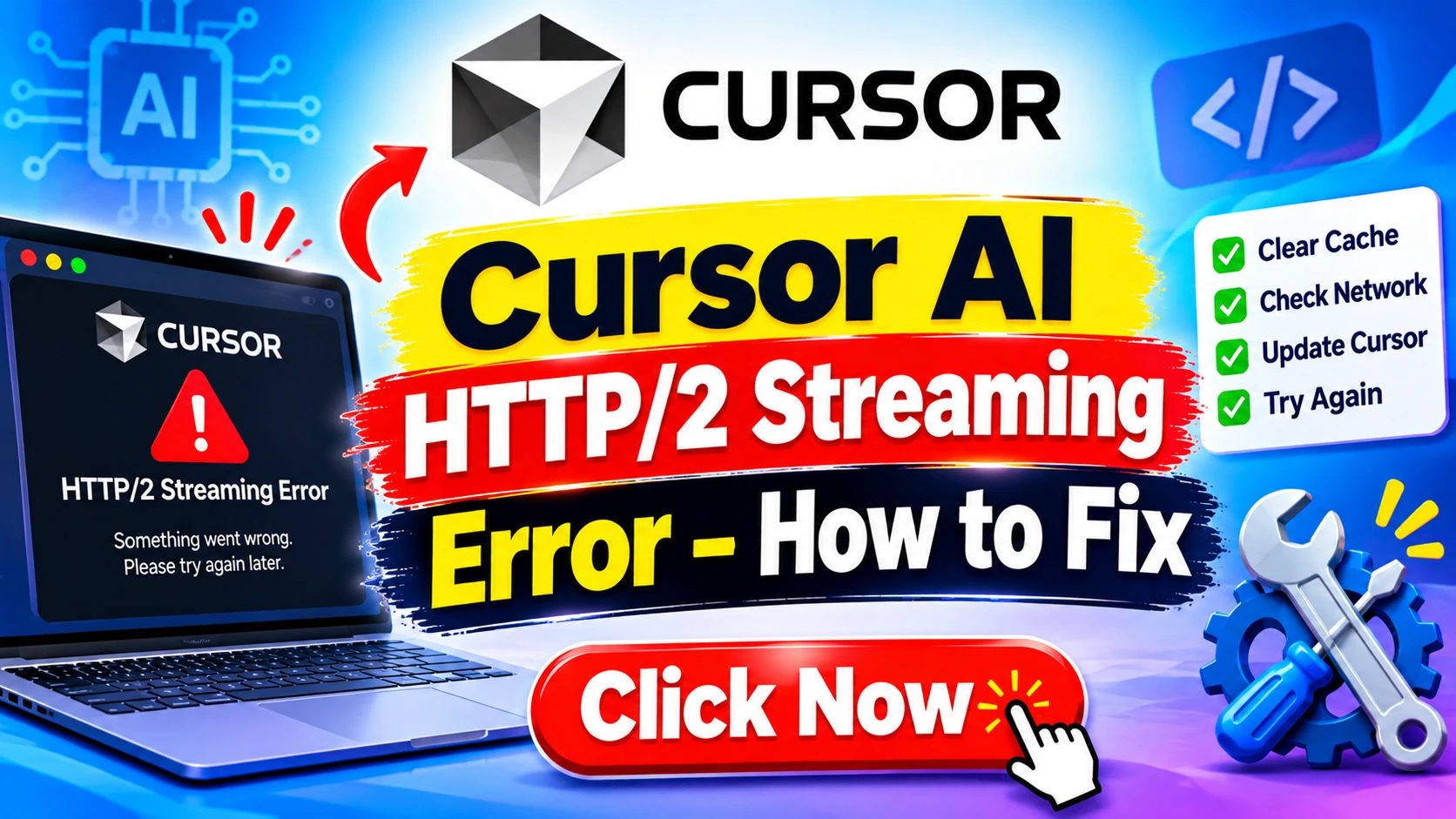
To fix a problem, you must first understand it. The Cursor AI HTTP/2 Streaming Error typically manifests as a popup notification or a log entry indicating that the connection to the AI backend was interrupted or failed to establish due to an “HTTP/2” issue. You might see messages like “Streaming Error,” “Connection Lost,” or explicit references to “HTTP/2 protocol failure” when trying to invoke an AI completion or chat feature.
What is happening?
Cursor AI uses HTTP/2, a major revision of the HTTP network protocol, to communicate with its servers. HTTP/2 offers significant advantages over the older HTTP/1.1, such as multiplexing (sending multiple requests and responses at the same time over a single TCP connection), header compression, and server push. These features are essential for the low-latency, high-throughput streaming required for AI text generation.
However, HTTP/2 relies on TCP connections that can be sensitive to network instability. When your computer connects to a network—be it a corporate VPN, a public Wi-Fi, or a home router with strict security settings—the packet flow can be disrupted. Firewalls, antivirus software, or proxy servers often struggle to inspect or handle HTTP/2 streams properly, leading to a termination of the connection. Cursor AI, expecting a continuous stream of data, detects this termination and throws the error.
Expert Tip: “Most streaming errors in modern IDEs are not crashes; they are handshake failures. The IDE is trying to speak a modern language (HTTP/2), but the network middleman (proxy/firewall) only understands the old one.” — Engr Niaz Khan
Quick Answer: Instant Fix for the Impatient Developer 
If you are in the middle of a critical task and need an immediate fix, try this:
- Restart Cursor AI: Fully close the application and reopen it.
- Toggle Your VPN: If you are using a VPN, turn it off. If you aren’t, turn one on (to a different region). This often bypasses ISP-level throttling.
- Check Proxy Settings: Go to Cursor Settings > General and ensure your HTTP Proxy settings are correct. If you don’t use one, ensure the “Proxy Strict SSL” is toggled off or configured correctly.
For a permanent solution, you will need to dive into the deeper fixes below.
Deep Dive: Why Does HTTP/2 Streaming Fail in Cursor AI? 
The Cursor AI HTTP/2 streaming error is rarely caused by the software itself being broken. Instead, it is almost always an environmental issue. Let’s break down the technical culprits.
1. The Role of the HTTP/2 Protocol
HTTP/2 is binary rather than textual. This makes it more efficient but also harder for older security software to inspect. When antivirus software (like Kaspersky, Avast, or Bitdefender) performs a “Web Shield” scan, it essentially acts as a Man-in-the-Middle (MitM). It decrypts your traffic, scans it, and re-encrypts it. If the antivirus does not fully support HTTP/2 multiplexing or if it mishandles the encryption certificates, the stream from Cursor AI’s server is corrupted. The client rejects it, and the stream dies.
2. Proxy Configuration and Corporate Networks
Many developers work within corporate environments that force all traffic through a proxy server. Proxies are often configured for HTTP/1.1. When Cursor AI attempts to negotiate an HTTP/2 connection through an HTTP/1.1 proxy, the connection fails or falls back incorrectly. This is a common cause of the error in enterprise settings.
3. DNS Resolution Issues
If your Domain Name System (DNS) cannot resolve the specific API endpoints Cursor AI uses, the request will hang. While this usually results in a “timeout,” it can sometimes manifest as a streaming error if the connection is established but immediately dropped.
4. IPv6 vs. IPv4 Conflicts
Some ISPs and routers have misconfigured IPv6 settings. Cursor AI might prioritize an IPv6 connection that is unstable, causing the HTTP/2 stream to drop. Forcing the system to use IPv4 can often resolve this.
Expert Advice: “Always check if your firewall is doing ‘Deep Packet Inspection’ (DPI). DPI is the enemy of HTTP/2 streams. It breaks the packets apart to look at them and fails to reassemble them in the right order for the AI to understand.” — Engr Niaz Khan
Step-by-Step Fixes: The Comprehensive Guide
Here is the definitive guide to resolving the Cursor AI HTTP/2 streaming error, ranked from the most effective to the more complex.
Method 1: The Network & Proxy Reset (Most Effective)
This method addresses the most common cause: network interference.
- Disable VPN/Proxy: If you are using a VPN, disconnect it. If you are on a corporate network, try switching to a mobile hotspot. If the error disappears on the hotspot, the issue is your corporate network’s firewall.
- Configure Cursor Proxy Settings:
- Open Cursor AI.
- Press
Ctrl + Shift + P(Windows) orCmd + Shift + P(Mac) to open the Command Palette. - Type “Settings” and open the User Settings.
- Search for “Proxy” in the search bar.
- Look for
http.proxysettings. If you are not on a proxy, ensure this is blank. - Crucial Step: Search for
http.proxyStrictSSLand set it tofalse. This allows Cursor to connect even if your corporate SSL certificate is not perfectly trusted. Note: Do this only if you are on a trusted network.
Method 2: Disabling HTTP/2 in Configuration (The Silver Bullet)
If the network environment refuses to cooperate with HTTP/2, the most reliable workaround is to force Cursor AI to use HTTP/1.1. While slightly slower, it is vastly more compatible.
For Windows Users:
- Close Cursor AI.
- Navigate to your Cursor installation folder or the
%APPDATA%\Cursorfolder. - Look for a
settings.jsonfile or a configuration file in the user data directory. - Add the following line to force HTTP/1.1:
"cursor.general.disableHttp2": true - Save and restart the application.
For Mac/Linux Users:
- Open the terminal.
- Open your Cursor settings file:
nano ~/Library/Application\ Support/Cursor/User/settings.json(Mac path example). - Insert the JSON key:
"cursor.general.disableHttp2": true - Save and restart.
Note: The exact JSON key may vary by version. If the above does not work, check the Cursor documentation for “Network Compatibility Settings.”
Method 3: DNS and VPN Adjustments
Sometimes, the issue is purely routing.
- Flush DNS: Open Command Prompt (Windows) or Terminal (Mac) and run:
- Windows:
ipconfig /flushdns - Mac:
sudo dscacheutil -flushcache; sudo killall -HUP mDNSResponder
- Windows:
- Change DNS Servers: Change your network adapter’s DNS to Google DNS (8.8.8.8 and 8.8.4.4) or Cloudflare (1.1.1.1). This bypasses ISP DNS issues.
- Disable IPv6: In your network adapter settings, uncheck “Internet Protocol Version 6 (TCP/IPv6).” This forces the system to use IPv4, which is often more stable for HTTP/2 connections in older infrastructure.
Method 4: Antivirus and Firewall Exclusion
Your security software might be strangling the stream.
- Add Exclusions: Open your antivirus (e.g., Windows Defender, Bitdefender) and add the Cursor AI executable and its working directory to the “Exclusions” or “Allow List.”
- Disable Web Shield Temporarily: Turn off “Web Protection” or “HTTPS Scanning” in your antivirus for 5 minutes. Test Cursor AI. If it works, you need to reconfigure your AV to not scan localhost or specific API domains.
Expert Insight: “I have seen cases where simply pausing the ‘Real-time Protection’ in Windows Defender solved the Cursor error. It’s a quick test to confirm if your AV is the culprit. If it is, don’t just leave it off; create a rule to exclude Cursor.” — Engr Niaz Khan
Quick Methods to Fix the Issue (Speed Round) 
- Toggle Off “Streaming”: In Cursor Settings, search for “Streaming” and try toggling the “Enable Streaming” feature off. This will wait for the full response instead of streaming, which can bypass the error, though it reduces the “live typing” feel.
- Restart the Language Server: Press
Ctrl+Shift+Pand type “Restart Extension Host” or “Restart Language Server.” - Update Cursor: Ensure you are on the latest version. The developers frequently patch network handling in updates.
- Check System Time: If your computer’s clock is out of sync with the server’s, SSL certificates will fail, killing the HTTP/2 stream. Sync your time in system settings.
Prevention Tips: Keeping the Error Away 
To ensure this error does not plague your future coding sessions, adopt these habits:
- Standardize Your Network: Avoid using “split tunneling” VPNs that route only some traffic. If you use a VPN, ensure it is stable and supports UDP (often better for streaming).
- Keep Cursor Updated: The Cursor team constantly updates the underlying Electron framework and network stack. Enable auto-updates.
- Use a Stable Connection: When possible, use a wired Ethernet connection or a 5GHz Wi-Fi band for less packet loss.
- Monitor Proxy Logs: If you are a network admin, monitor proxy logs for “HTTP/2 Stream Cancellation” errors related to your IDE traffic.
Real-life Examples & Case Studies 
Case Study 1: The Corporate Firewall
Scenario: A senior developer at a fintech company couldn’t use Cursor AI’s chat feature. The error log showed ERR_HTTP2_PROTOCOL_ERROR.
Root Cause: The corporate firewall was performing SSL inspection. It did not support the ALPN (Application-Layer Protocol Negotiation) extension required for HTTP/2.
Solution: The developer created a specific firewall rule to bypass SSL inspection for the Cursor API domains (e.g., api.cursor.sh). The error vanished immediately.
Case Study 2: The VPN Conflict
Scenario: A freelance developer working from a coffee shop kept getting “Streaming Interrupted” errors.
Root Cause: The public Wi-Fi was blocking UDP port 443, which HTTP/2 sometimes attempts to use (QUIC), or the VPN was dropping packets due to a weak signal.
Solution: Switching the VPN protocol from WireGuard to OpenVPN (TCP) stabilized the connection, allowing the HTTP/2 stream to multiplex correctly.
Why This Matters: The Cost of Downtime 
For a developer, context switching is the enemy of productivity. The Cursor AI HTTP/2 streaming error forces a context switch. You have to stop coding, diagnose the network, and troubleshoot. Studies suggest it takes over 23 minutes to regain deep focus after an interruption. In a day with five such errors, you lose nearly two hours of productive coding time. Furthermore, the reliance on AI for debugging means that when the AI is down, your debugging capability is halved. Fixing the connection is not just about convenience; it is about reclaiming lost billable hours and maintaining mental flow.
Common Mistakes to Avoid 
- Reinstalling the OS: This is overkill. The issue is almost always at the application or network layer, not the operating system.
- Ignoring the Specific Error Code:
HTTP/2errors are different fromDNSerrors. Don’t try to flush DNS if the error explicitly says HTTP/2. - Disabling Antivirus Permanently: While disabling AV helps diagnose the issue, leaving it off is a security risk. Use exclusions instead.
- Using Outdated Proxies: If you must use a proxy, ensure it supports HTTP/2. An HTTP/1.1 only proxy will always cause this error with Cursor.
Safety Warnings 
- SSL Certificate Validation: When disabling
StrictSSLor adding exceptions, be aware that you are opening the door to potential Man-in-the-Middle attacks on your local network. Only do this if you trust the network (e.g., your home or secure corporate). - Third-Party Tools: Avoid downloading “HTTP/2 Fixer” tools from untrusted sources. These are often malware. Use built-in settings or official documentation.
What NOT to Do 
- Do NOT flood the support channels before checking your own network.
- Do NOT modify registry keys related to TCP/IP (like
TcpAckFrequency) unless you are an advanced network engineer. This can permanently degrade your system’s network performance. - Do NOT use untrusted public DNS servers that might log your traffic.
Checklist or Summary 
- □ Restarted Cursor AI?
- □ Checked VPN/Proxy status?
- □ Added Cursor to Antivirus exceptions?
- □ Tried the “Disable HTTP/2” settings flag?
- □ Flushed DNS?
- □ Updated Cursor to latest version?
Trusted References 
- Google Developers: HTTP/2 Protocol Overview and benefits.
- Cloudflare Learning Center: Understanding HTTP/2 vs. HTTP/1.1.
- Microsoft Docs: Troubleshooting network connection issues in Electron apps.
- Cursor Official Documentation: Network and Proxy configuration.
- IETF Datatracker: RFC 7540 (HTTP/2 specification).
Pros & Cons of HTTP/2 in AI Tools 
Pros:
- Multiplexing: Allows the AI to stream tokens and receive prompts simultaneously over one connection.
- Speed: Significantly faster response times for large context windows.
- Efficiency: Reduces bandwidth usage through header compression.
Cons:
- Complexity: Harder to debug than HTTP/1.1.
- Compatibility: Often breaks in older corporate environments or with strict security software.
- Sensitivity: A single packet drop can kill the whole stream, requiring a full reconnect.
Conclusion 
The Cursor AI HTTP/2 Streaming Error is a formidable opponent, but it is not invincible. By understanding that the issue lies in the bridge between your local network and the AI’s cloud infrastructure, you can systematically dismantle the problem. Whether it’s a simple antivirus exclusion or forcing the protocol back to a more stable version, the solutions are within your grasp.
Remember, the goal is to keep the stream alive. In a world where AI is your copilot, a broken connection is a grounded flight. Implement the fixes above, specifically the “Disable HTTP/2” flag if all else fails, and you will be back to seamless coding in no time. Keep your tools updated, your network secure, and your focus sharp.
Premium Tips from Niaz Khan Expert 
“As a developer who has spent decades wrestling with network stacks, I want to leave you with this: Don’t fight the protocol, adapt to it. If you are constantly having HTTP/2 issues on a specific network, it is not a Cursor problem; it is a network limitation. Create a specific ‘Coding’ profile on your machine with the proxy settings saved. For enterprise users, talk to your IT department. They can whitelist the *.cursor.sh domain from SSL inspection. This is the single most effective fix for corporate users. And finally, keep an eye on the Cursor changelogs—the team often releases ‘Network Stability’ updates that resolve these bugs without you needing to touch a single setting.”
Disclaimer
The information provided in this article is for educational and troubleshooting purposes only. Network configurations vary widely, and what works for one user may not work for another. Always ensure you have administrative rights before changing system settings. The author and publisher are not responsible for any network disruptions, security vulnerabilities, or data loss resulting from the implementation of these fixes. Always create a system restore point before making significant changes to your network or registry settings.
Written By : Engr Niaz Khan