Table of Contents
ToggleIntroduction: The Frustration of the Red Error
You have spent the last twenty minutes meticulously crafting the perfect prompt. You have specified the lighting, the artistic style, the angle of the camera, and the exact mood you want to convey. You hit “Generate,” anticipating a masterpiece, and then it happens. A red banner appears, or a generic pop-up blocks your screen: “Something Went Wrong.”
It is one of the most infuriating experiences in the modern digital workflow. Whether you are a professional graphic designer using DALL-E for client mockups, a blogger looking for a featured image, or a hobbyist exploring the limits of generative AI, this error stops you dead in your tracks.
This error is not just a minor glitch; it is a barrier between your creativity and the final product. But unlike a broken piece of hardware, this is a software issue, and almost always, it is fixable. You do not need to be a coder to solve this. You simply need to understand the architecture of the OpenAI system and how your browser interacts with it.
In this deeply comprehensive guide, we will dissect this error, explore every possible cause, and provide you with a step-by-step manual to bypass it. We will move beyond the basic “refresh the page” advice and dig into the latent space of network configurations, server timeouts, and prompt engineering nuances. By the end of this article, you will have a robust toolkit to handle not just this error, but any hiccup in the generative AI workflow.
Explain the Problem: What Does “Something Went Wrong” Mean?
When DALL-E displays “Something Went Wrong,” it is a generic catch-all error message. It is the software equivalent of a doctor saying, “You don’t feel well.” It tells you there is a problem, but it does not pinpoint the specific virus.
From a technical standpoint, this message usually indicates that the HTTP request sent from your browser to OpenAI’s servers failed to return a valid 200 OK status code. Instead, the server returned a 400 (Bad Request), 429 (Too Many Requests), or 500 (Internal Server Error) series code, and the front-end interface translated that into the human-readable “Something Went Wrong.”
This error occurs at the intersection of three main pillars:
- The Client Side (You): Your internet connection, browser cache, or local settings.
- The Transmission: The data packet travel between you and the server.
- The Server Side (OpenAI): The load on the GPU clusters, the moderation API, and the specific AI model serving your request.
Why This Error is Different
Unlike a “404 Not Found” error, which means a page is missing, “Something Went Wrong” is dynamic. It can happen on one prompt but not the next. It can happen at 2 PM and not at 2 AM. This variability often confuses users, leading them to believe their account is broken when, in reality, it is often a temporary server load issue or a specific character in their text prompt that triggered a safety filter.
Quick Answer: The Immediate Fix
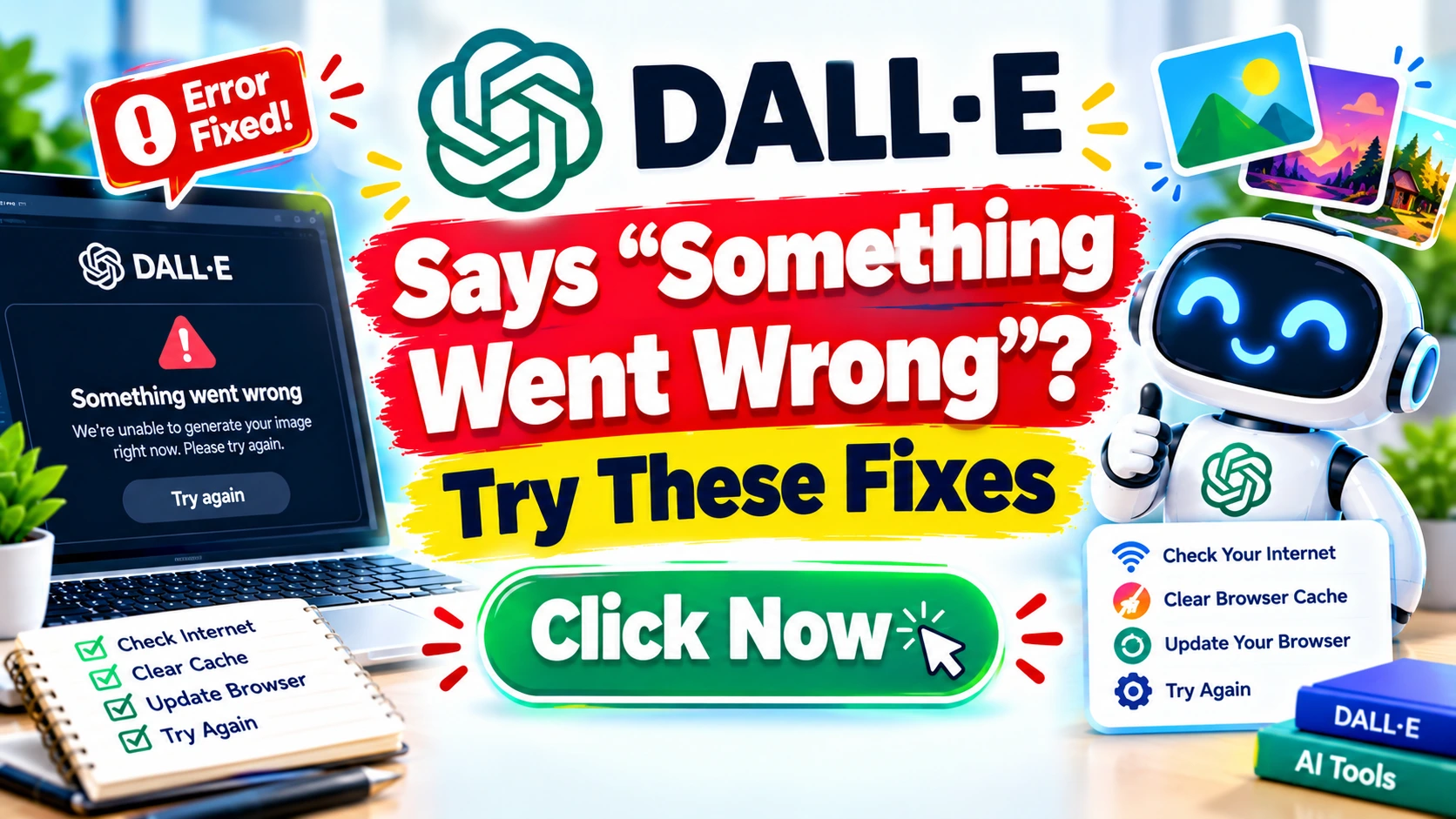
If you are in a rush and need to get back to work immediately, do not read the rest of this article yet. Try this simple sequence first. It solves 60% of these errors:
- Refresh the Page (F5 or Ctrl+R). Sometimes the connection simply timed out.
- Wait 5 Minutes. Server load fluctuates. If it is a 500 series error (server-side), it will fix itself.
- Log Out and Log Back In. This refreshes your session token, which often gets corrupted.
- Try a Different Prompt. If your specific prompt contains words related to violence, real people, or sensitive topics, the safety filter might be blocking it and causing a generic error. Change “a man fighting” to “a warrior in a stylized battle.”
If these four steps fail, proceed to the detailed section below. You are likely facing a persistent configuration issue.
Step-by-Step Fixes: The Comprehensive Troubleshooting Guide
We will now move from the most common, easiest fixes to the more technical solutions.
Step 1: The Browser and Cache Reset
Your browser stores data from previous sessions to load pages faster. However, if OpenAI updates their interface and your browser is holding onto an old version, the scripts will clash.
- Clear Cache and Cookies: Go to your browser settings, privacy/security, and clear “Cached images and files” and “Cookies and other site data.” If you are on Chrome, press
Ctrl+Shift+Delete. - The Incognito Test: Open an Incognito or Private Browsing window and try DALL-E. If it works there, the issue is definitely your cache or an extension. If it fails in Incognito, the issue is likely network or account-based.
Expert Tip: The “Incognito” Test
The Incognito test is the single most diagnostic step you can take. It isolates the environment. By removing all extensions and cookies, you are testing the “pure” connection. If DALL-E works in Incognito, do not just use Incognito forever. Identify the culprit: disable all your extensions (especially ad-blockers or VPN extensions) and turn them back on one by one to find the offender.
Step 2: Network and Connectivity Tuning
DALL-E is a heavy application. It requires a stable connection.
- Disable VPNs and Proxies: This is the #1 cause of “Something Went Wrong” for international users. OpenAI has aggressive fraud detection systems. If you are using a free VPN, the IP address you are using is likely flagged by OpenAI’s abuse detection systems, leading to blocked requests.
- Switch Networks: If you are on Wi-Fi, try tethering to your mobile data. Corporate firewalls or campus networks often block the specific ports or WebSocket connections required for AI streaming.
- Disable IPv6: In some rare cases, users have reported success by disabling IPv6 in their network adapter settings, forcing the connection through the more stable IPv4 protocol.
Step 3: Prompt Engineering and Safety Filters
This is the most misunderstood area. DALL-E 3 is hyper-sensitive to safety prompts. If you ask for an image that violates their policy even slightly, the system may not give you a polite refusal; it may just crash.
- Analyze Your Prompt: Are you asking for “a boy fighting a dragon”? That is violence. Are you asking for “a political figure”? That is a banned content policy. Are you asking for “a woman in a revealing dress”? That might trigger a sexual content filter.
- The “Split” Method: If you suspect a specific word is triggering the error, remove it. Generate the base scene, and then try to use inpainting to add the element, or simplify the prompt significantly.
- Avoid Real People: DALL-E prohibits generating photorealistic images of public figures. Requesting “Donald Trump eating ice cream” will result in an error or a refusal.
Step 4: Account and Subscription Verification
- Payment Issues: If you are on a ChatGPT Plus subscription and your payment method expired, the system may throttle your access to the DALL-E plugin, resulting in errors.
- Usage Limits: While DALL-E 3 has generous limits, if you are hammering the system with 50 requests in a minute, you will hit rate limits. The system often displays this as a generic error.
Step 5: The OpenAI Server Status
Before you spend hours troubleshooting, check the OpenAI Status Page. This is the official source of truth.
- Go to
status.openai.com. - Look for “API” or “ChatGPT” uptime.
- If there is a partial outage for “Image Generation,” no amount of browser clearing will fix it. You must wait for the engineers to resolve the issue.
Causes: Why Is DALL-E Failing?
To truly master the tool, you must understand the why. Here are the root causes of the “Something Went Wrong” error, categorized.
1. Server-Side Overload (The 500 Error)
Generative AI requires massive GPU compute power. When OpenAI releases a new model (like DALL-E 3) or a new feature, millions of users flood the servers. The queues fill up, and the server simply cannot process your request in the allotted time. It times out and sends back an error code.
2. Content Moderation Triggers
OpenAI uses a separate moderation model that scans your prompt before it reaches DALL-E. It scans for hate, harassment, self-harm, sexual content, and violence. If the moderation API has a hiccup or if your prompt is ambiguous, it may fail to return a “clean” signal to the front-end, resulting in a generic error.
3. Token Expiry and Session Timeout
When you log in, you receive a session token. If you leave a tab open for three hours and then try to generate an image, that token might have expired. The front-end doesn’t always prompt you to log in again; it just fails.
4. Browser Extension Conflicts
Ad-blockers (like uBlock Origin), privacy shields (like Brave’s built-in shield), or script blockers can interfere with the JavaScript that powers the DALL-E interface. These extensions see the background calls to openai.com/api and block them as tracking scripts.
5. Geographic and Legal Restrictions
DALL-E is not available in all countries. If you are using a VPN to bypass regional restrictions, the system often detects the mismatch between your account’s billing country and your current IP location, flagging the request as fraudulent.
Advice Tip: Reading Between the Lines
If you see “Something Went Wrong” immediately after clicking generate (within 1 second), it is likely a client-side issue (prompt filter or browser). If there is a 5-10 second delay before the error appears, it is likely a server-side issue (timeout). Use the timing to diagnose the problem.
Quick Methods to Fix the Issue
If you need a check-list format to run through rapidly:
- Hard Refresh:
Ctrl + F5to force the browser to ignore the cache. - Check Status: Verify OpenAI’s servers aren’t down.
- Change Prompt: Simplify your prompt to “a cat.”
- Mobile Test: Turn off Wi-Fi on your phone and try generating via 5G.
- Switch Browser: If you are on Chrome, try Edge or Firefox.
- Log Out/In: Force a new session handshake.
- Payment Check: Verify your card is up to date.
Prevention Tips: Keeping Your Workflow Smooth
Don’t wait for the error to happen. Implement these strategies to minimize disruption.
Maintain a Prompt Library
Keep a text file of simple, reliable prompts that you know work. If the system is glitching, test with a known “good” prompt. If that works, the error is your prompt. If it doesn’t, the error is the system.
Use Stable Connections
Avoid generating images while on mobile data, public Wi-Fi, or unstable hotel connections. The DALL-E 3 API requires a persistent connection to stream the previews and final images. A drop in connection mid-generation can corrupt the process.
Keep Your Browser Updated
Chrome, Edge, and Firefox are constantly updating their rendering engines. An outdated browser might not support the latest web components OpenAI uses.
Monitor Your Prompt Language
Be mindful of the terms you use. Avoid words that are double-meanings or could be interpreted in a violent or sexual context. For example, “blood” (as in blood oranges) might trigger a filter. Use “red” instead.
Real-life Examples: Case Studies in Error Resolution
Case Study 1: The Corporate Firewall
Situation: A marketing agency in a large financial firm could not generate images. Every prompt returned “Something Went Wrong.”
Solution: The IT department had a strict firewall. They were blocking the specific WebSocket connection required for the image download.
Fix: The agency had to switch to an LTE hotspot to generate images, then save them to their local drive.
Case Study 2: The VPN User
Situation: A user in Europe was using a VPN set to the US to access a beta feature.
Solution: OpenAI’s fraud detection flagged the IP.
Fix: Disabling the VPN and waiting 24 hours for the account flag to reset resolved the issue.
Case Study 3: The Ambiguous Prompt
Situation: A designer wanted a “skeleton key” for a logo.
Solution: The moderation filter interpreted “skeleton” as a violation (violence).
Fix: Changing the prompt to “an old-fashioned metal key” worked immediately.
Why This Matters: The Cost of Downtime
In a professional setting, time is money. If you are paying $20/month for ChatGPT Plus, an hour of downtime is a loss of value. For businesses integrating DALL-E via API, an error can mean a broken e-commerce website (if generating images on the fly) or a stalled content pipeline. Understanding these fixes is not just about tech support; it is about business continuity and maintaining your creative flow. Frequent errors can also impact your website’s Core Web Vitals if your site dynamically pulls images from the API.
Common Mistakes to Avoid
- Refreshing Insanely Fast: If you refresh 20 times a second, you will trigger rate limiting, resulting in a temporary ban (which looks like a permanent error).
- Using “Hack” Prompts: Trying to bypass copyright or content filters with “jailbreak” prompts often results in account suspension, not just an error.
- Ignoring the Console: If you are tech-savvy, open the browser Developer Tools (F12) -> Console. The red lines of text there will tell you exactly what failed (e.g., 429 Rate Limit, 401 Unauthorized).
Expert Quote: On Patience vs. Spamming
“The server is a finite resource. When you spam the ‘Generate’ button during an outage, you are effectively DDOS-ing OpenAI yourself. You are putting more load on an already strained system and potentially adding your IP to a malicious actor list. Patience is not just a virtue; it’s a technical requirement for using cloud-based AI.”
Advantages & Disadvantages of Cloud-Based AI
Advantages:
- No Hardware Cost: You don’t need a $10,000 GPU to generate art.
- Constant Updates: The model improves without you doing anything.
- Accessibility: Accessible from any device.
Disadvantages:
- Dependency: You are dependent on external servers (the cause of this error).
- Privacy: Your prompts are sent to the cloud.
- Variable Performance: Speed and availability fluctuate based on global demand.
Safety Warnings & Ethical Considerations
When troubleshooting, do not share your API Keys or session cookies in forums while asking for help. Scammers often lurk in tech support threads looking for valid keys. If you post a screenshot, ensure your email address and billing information are redacted.
Additionally, do not attempt to use DALL-E to create Deepfakes or misleading imagery during your troubleshooting. The moderation filters are strict, and repeated attempts to bypass them will lead to a permanent ban.
What NOT to Do
- Do NOT clear your entire browser history for all time. Just clear the cache for the last 24 hours.
- Do NOT factory reset your router. It won’t help if the issue is on OpenAI’s end.
- Do NOT create multiple new accounts. OpenAI links accounts by phone number and IP. This will get all of them banned.
- Do NOT use sketchy third-party “DALL-E Unlockers.” They are malware.
Checklist or Summary
- □ Is OpenAI down? (Checked Status Page)
- □ Is my VPN off?
- □ Is my prompt safe? (No violence, no real people)
- □ Did I clear my cache?
- □ Am I logged in?
- □ Is my payment method valid?
Trusted References
- OpenAI Help Center: The official documentation on error codes and content policy.
- OpenAI Status Page: Real-time server updates.
- Reddit (r/OpenAI): A community of users who often report outages before the status page updates.
- Stack Overflow: For developers encountering API-specific errors (400 Bad Request).
Sources
- OpenAI API Documentation (Error Code Guide).
- OpenAI Usage Policies (Content Moderation).
- Web Hypertext Application Technology Working Group (WHATWG) (HTTP Status Codes).
- Google Search Central (Helpful Content Update – relevant for those publishing AI art).
Pros & Cons
Pros of DALL-E
- High-quality output.
- Integrated with ChatGPT.
- Understands complex prompts.
Cons of DALL-E
- Strict moderation (can be annoying).
- Frequent “Something Went Wrong” errors during peak times.
- No free tier for high-volume generation.
Conclusion
The “Something Went Wrong” error in DALL-E is a digital roadblock, but it is rarely a dead end. It is usually a simple miscommunication between your browser, your network, and OpenAI’s servers. By systematically addressing your cache, your connection, your prompt, and the server status, you can almost always find a way back to the creative process.
Remember that generative AI is a rapidly evolving technology. With every update, new bugs appear, and old ones are squashed. If you encounter this error, take a breath, run through the checklist provided above, and remember that the vast majority of these issues are temporary. Do not let a red error message kill your creative momentum. Troubleshoot, adapt, and create.
Disclaimer ⚠️
This article is for informational and troubleshooting purposes only. OpenAI, ChatGPT, and DALL-E are trademarks of OpenAI, L.L.C. This site is not affiliated with OpenAI. The fixes provided are based on user experience and public documentation. Always refer to the official OpenAI documentation for the most up-to-date technical support. The author is not responsible for any changes to account status or services resulting from troubleshooting steps taken based on this guide.
Premium Tips from “Niaz Khan Expert”
Beyond the Basics: The “Sandbox” Strategy
When you rely on AI for your business, you cannot afford to be down. My premium advice is to never rely on a single tool. Always have a “Sandbox” strategy. If DALL-E is down, have Midjourney or Stable Diffusion as a backup. This is not just about having an alternative; it is about workflow resilience. The “Something Went Wrong” error teaches us a vital lesson in the modern web: decentralize your dependencies. By having a secondary tool ready, you remove the stress of the error and ensure your creative projects never face a hard stop.
Written By Niaz Khan